The library catalog, powered by Aspen Discovery, enables you to enjoy a browsing experience that makes it easier than ever to find what you’re looking for.
Key features include:
- Physical and digital items show together in the same result.
- Discover readalikes and similar items.
- Checkout and place holds for digital items all in the new catalog.
- Rate items and get recommendations.
Explore how to use the new catalog and all of it’s new features below.
Aspen Discovery Catalog Help
Signing In/Out
Signing In
Sign In by selecting the Sign In button a the top right of the page.

Enter your Library Card Number and PIN.
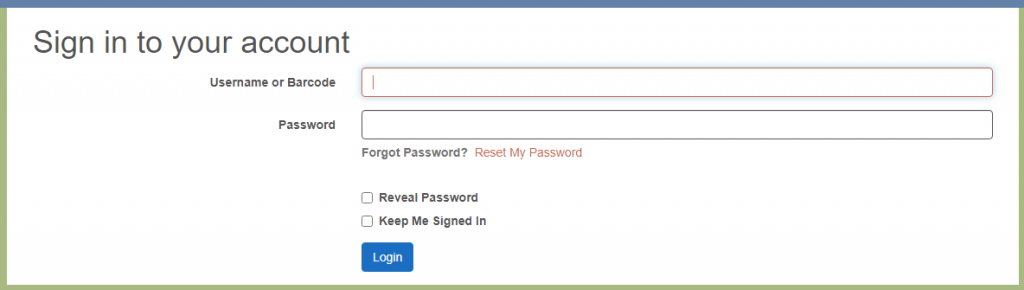
If you have forgotten your PIN, select Reset My Password then enter your library card number to reset it.
If you have registered your email address with the library, you will receive an email with a token to use to reset your PIN.
Contact the Library for help if you do not see this email or need help resetting your PIN/Password.
Signing Out
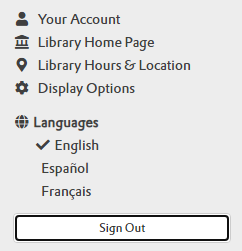
To Sign Out, select the menu button at the top right, next to your account name (the 3 lines). In the menu dropdown, select the Sign Out button at the bottom of the menu.
View Account Details
Access Your Account Details
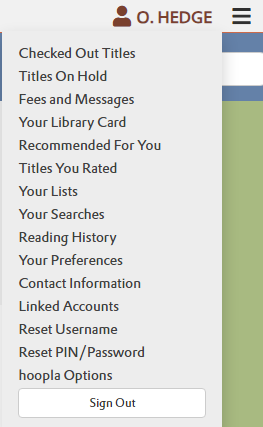
View details about your Library Account including current checkouts, holds, and more by selecting either your name in the top right and selecting the option you want OR within the menu.
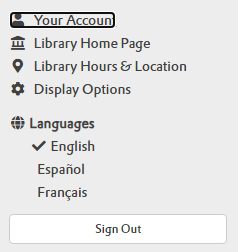
Selecting Your Account will bring you to an summary of your account, with the total of your checkouts, holds, holds ready for pickup, and overdues.
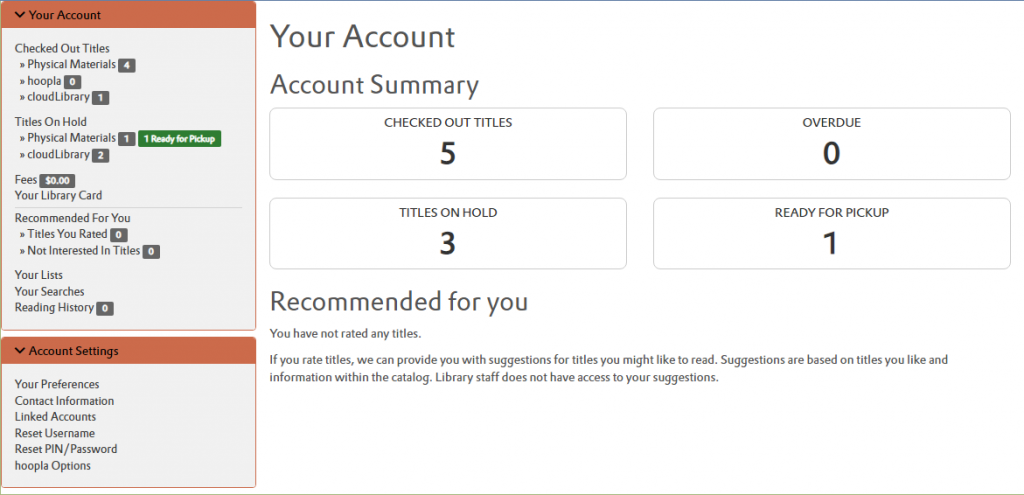
Get more info on each by selecting the menu options on the left side of the screen, or the boxes under Account Summary.
How to Search
Make a Basic Search
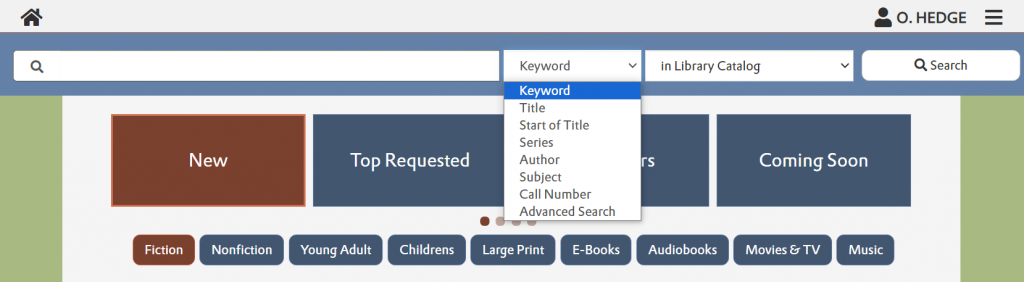
In the search bar under the menu links, enter your search terms and select the Search button. To narrow down your results before searching, in the dropdowns you can select options such as a search by Title, Author, or Series.
Sort Your Results
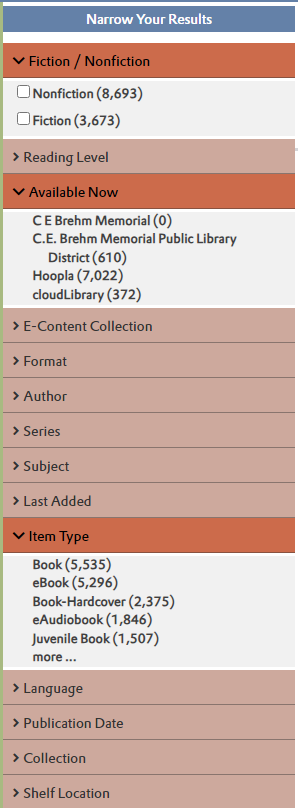
There are several ways to narrow and refine your search results. Sort results by title author, publication year, and more.
Use the icons to select the format. Books, eBooks, and other formats.
Narrow down by the entire collection, or show only what’s available now.
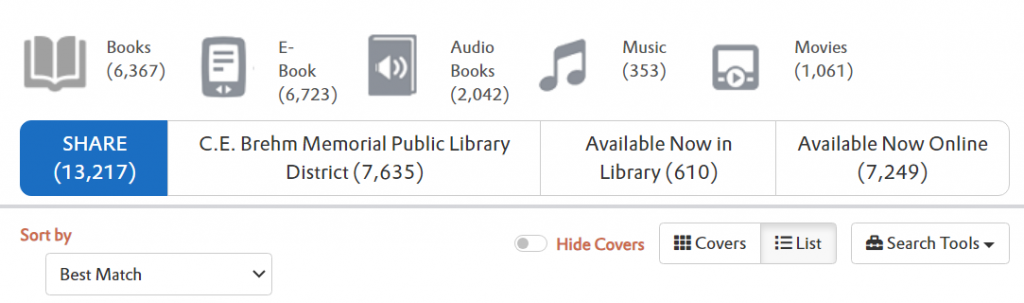
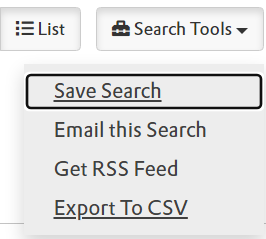
Save your search in the search tools dropdown. Your saved searches will appear in Your Searches in your account.
Use the categories on the left for even more options. Many options can selected at a time.
How to Place a Hold
Placing a Hold
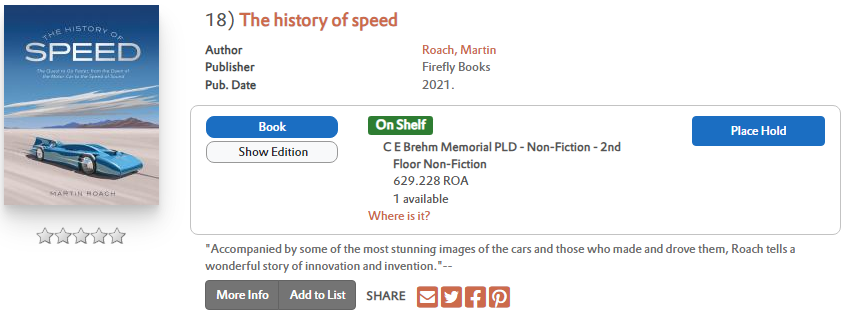
Next to the format of the item you want to place a hold on, either in search results or on the individual item’s page, select the Place Hold button.
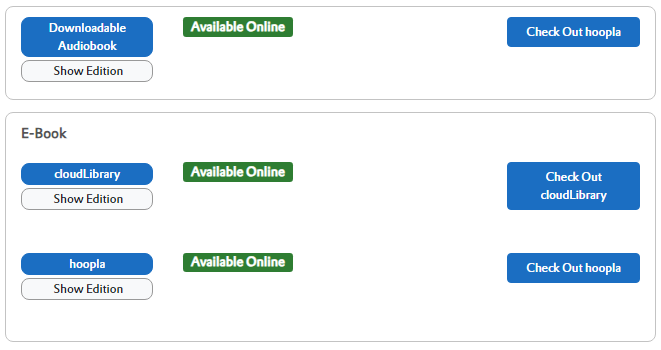
Digital Items can also have holds placed within Aspen Discovery in the same way.
How to Make and Manage a List
Making a List
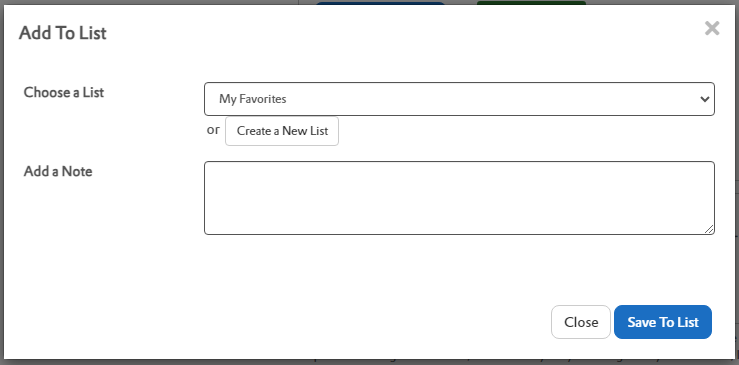
Items can be added to a list by selecting the ‘Add to list‘ button underneath an item’s details in a search result.

In the window that appears, add the item to an existing list, or create a new list. You can also add a note to the item when you add it.
View Your List
You will find your Lists in your account, select ‘Your Lists‘ from your account page to view all of your lists.
Share Your List
Your list can be shared with others by changing it from Private to Public. By default, all lists are private.
To share your list, go to the list you want to share in your account, and select the Edit button at the top of the list.
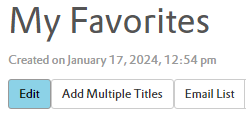
Next to the Access toggle, select the toggle to change the list from private to public. Then select Update to save.

Your list is now shareable to others. Copy the URL of your list to share it. Those you share your list with will see a view-only version, only the list creator can edit the list.
Import Your Lists from the Old Catalog
Import Your List
Your list can be imported from the previous catalog within your account.
Log into the catalog with your Library Card number and your PIN / Password.
Select Your Lists from your Account page.
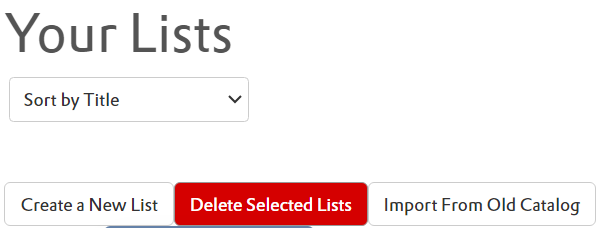
Select the Import from Old Catalog button to import all of your lists.